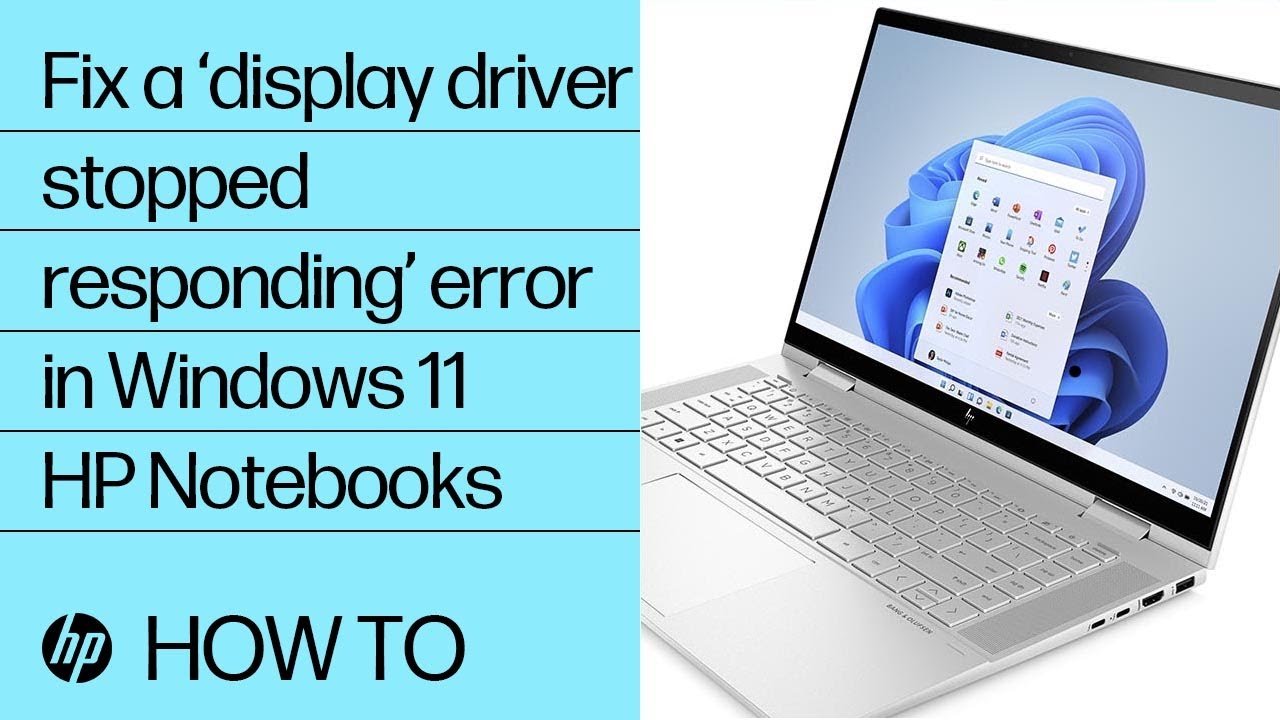
Encountering a sudden screen freeze followed by a blank display and the warning notification stating that your display driver stopped responding and has recovered is one of the most disruptive glitches on Windows 11. For digital creators, video editors, and everyday social media users who rely on seamless desktop performance to produce content, manage audience engagement, or stream live media, this interruption halts productivity instantly. When you are in the middle of editing high-bitrate vertical video footage, rendering animations, or previewing multi-track audio and video timelines, an unstable graphics pipeline can cause creative applications to freeze, crash to the desktop, or lose unsaved progress entirely. At viewertik.com, our technical testing indicates that while the notification itself seems alarming, it represents an intentional safeguard built into the Windows operating system designed to prevent catastrophic system crashes.
The underlying problem stems from a breakdown in communication between the Windows 11 graphics subsystem and your physical graphics processing unit. When a graphics task demands excessive processing time, encounters corrupt shader caches, or runs into driver incompatibility, the system resets the graphics hardware rather than allowing the computer to suffer a fatal Blue Screen of Death. Understanding how this recovery sequence operates and addressing the specific software, cache, and driver triggers allows you to restore complete visual stability. This recovery guide breaks down the core architecture behind this error, guides you through sequential troubleshooting steps across your Windows 11 environment, provides targeted companion fixes for connected Android and iOS creator workflows, and outlines critical privacy practices to safeguard your machine.
Background and Technical Mechanics of the Windows 11 Graphics Pipeline
Timeout Detection and Recovery Architecture
To understand why Windows 11 issues this notification, you must understand Timeout Detection and Recovery, commonly abbreviated as TDR. In earlier operating system generations, if a graphics processing unit stalled or entered an infinite processing loop during a demanding rendering task, the entire computer locked up, requiring a hard manual reboot. Modern Windows architectures incorporate the TDR engine within the DirectX Graphics Kernel to continuously monitor the health and responsiveness of the graphics adapter. The operating system sends scheduled rendering commands to the display driver and starts an internal countdown timer.
By default, the operating system expects the graphics card to return an acknowledgment and complete its assigned task within two seconds. If the hardware or display driver fails to respond within that precise window, the operating system assumes the graphics processor is unresponsive. Instead of initiating a kernel panic, Windows initiates a recovery sequence. The Desktop Window Manager pauses visual updates, logs a recovery event, purges the current graphics pipeline, and commands the display driver to reinitialize. During this brief two-second reset window, your computer screen flickers black before returning to normal operation, accompanied by the recovery alert.
Media Cache, Driver Layers, and Hardware Acceleration
While the TDR mechanism acts as a safety harness, the conditions that trigger it usually originate within user-mode drivers, hardware acceleration layers, and fragmented temporary media caches. Social media creators frequently work with complex container formats, including variable frame rate recordings and high-efficiency video codecs streamed directly from mobile devices or web-based content suites. When modern desktop browsers or video editing suites attempt to offload decoding tasks to your graphics card through hardware acceleration APIs, any mismatch in codec parsing can stall the graphics hardware execution queue.
Furthermore, temporary application caches accumulate thousands of compiled shader assets over time. If a shader cache becomes corrupt after a system update or application upgrade, the graphics card attempts to read invalid memory addresses, creating a temporary deadlock. When desktop applications interact with companion background services—such as cloud sync utilities or mobile device managers—unoptimized background API requests compete for shared GPU memory bandwidth. This sudden resource contention starves the primary display thread, exceeding the two-second timeout threshold and triggering an immediate graphics driver reset.
Detailed Step-by-Step Recovery Solutions for Windows 11 and Creator Workflows
Performing an Instant Display Driver Restart and Quick Diagnostics
When your display driver stumbles or your display begins stuttering during video playback, Windows 11 provides a built-in keyboard shortcut to reinitialize the graphics subsystem immediately without restarting your entire machine. Pressing the Windows Key together with Ctrl, Shift, and B commands the operating system to flush the active display buffer and restart the graphics driver directly from the kernel level. When you execute this combination, your display flickers black for a second, a brief diagnostic beep sounds from your system speakers, and the desktop workspace refreshes immediately.
This instantaneous reset resolves transient frame-buffer deadlocks, especially when switching between full-screen media players and heavy multi-window browser sessions. If your mouse cursor is responsive but video frames have frozen on screen, executing this sequence immediately frees up blocked hardware execution queues. Once the desktop reappears, check your system tray to ensure background applications have not crashed, and close any secondary applications running heavy visual processes to alleviate immediate strain on your graphics hardware.
Updating and Reinstalling Graphics Drivers via Device Manager
Outdated or partially corrupted display adapter software represents the primary reason graphics drivers fail to meet the operating system response deadlines. Updating or refreshing the driver through the native Windows Device Manager ensures that basic system dependencies and driver digital signatures align with the latest Windows 11 feature updates. Begin by right-clicking the Start button on your taskbar and selecting Device Manager from the administrative menu.
Expand the Display Adapters section to reveal your dedicated or integrated graphics hardware. Right-click your active graphics adapter and select the Update Driver option from the context menu. In the wizard window that appears, choose the option to search automatically for drivers, which instructs Windows to query verified hardware libraries for compatibility updates. If Windows reports that the best driver is already installed, right-click the adapter again, select Properties, open the Driver tab, and note the driver date and version number for subsequent clean-installation procedures.
Performing a Clean Graphics Driver Reinstallation with Display Driver Uninstaller
When routine driver updates fail to eliminate recurring TDR events, residual registry entries, obsolete dynamic link libraries, and corrupted configuration files from previous software versions are usually lingering on your storage drive. Resolving this deep-seated corruption requires a clean reinstallation using Display Driver Uninstaller, an industry-standard utility designed to strip away every trace of past graphics packages. Before running the utility, visit the official website of your graphics manufacturer—Intel, NVIDIA, or AMD—and download the latest standalone driver package specifically certified for Windows 11.
Restart your Windows 11 computer into Safe Mode by holding the Shift key while clicking Restart in the Start menu, then navigating through Troubleshoot, Advanced Options, and Startup Settings. Once the operating system boots into the low-resolution Safe Mode environment, launch Display Driver Uninstaller, select your device type as GPU, and choose the Clean and Restart option. The software methodically scrubs driver repositories, system registry branches, and background services before rebooting your computer into normal mode. After the desktop loads, execute the official standalone driver installer you previously downloaded, choose a Custom or Clean Install option within the installation wizard, and allow the new driver to bind cleanly to the Windows display pipeline.
Adjusting Windows 11 Graphics Settings and Hardware-Accelerated GPU Scheduling
Windows 11 introduces advanced scheduling capabilities that alter how tasks are queued between your central processor and graphics adapter. While Hardware-Accelerated GPU Scheduling, known as HAGS, is engineered to decrease latency and enhance rendering efficiency, it can trigger instability and timing desynchronization on specific hardware configurations or heavily modified creative workstations. Toggling this parameter allows you to establish a more stable execution cadence.
Open the Windows 11 Settings application by pressing Windows Key and I simultaneously, navigate to the System category, and click on Display. Scroll down to the bottom of the page and select the Graphics submenu, then click on the link titled Change Default Graphics Settings. Locate the toggle switch for Hardware-Accelerated GPU Scheduling and switch it to the Off position. Below that setting, you can also toggle Variable Refresh Rate off if your display experiences severe flickering during video timeline playback. After modifying these parameters, restart your computer to force the Windows kernel to initialize using conventional software-managed CPU scheduling queues.
Modifying the Timeout Detection and Recovery Registry Threshold
If your graphics card is fundamentally healthy but requires additional processing time to compile complex visual scenes, 3D assets, or high-bitrate creator timelines, the default two-second TDR threshold may simply be too aggressive. By carefully editing the Windows Registry, you can extend the timeout window from two seconds to eight seconds, granting the graphics processing unit sufficient time to finish intensive rendering calculations without triggering an automatic driver reset.
Launch the Registry Editor by pressing Windows Key and R, typing regedit into the Open prompt, and clicking OK. Navigate through the hierarchical tree to the path located at HKEY_LOCAL_MACHINE\SYSTEM\CurrentControlSet\Control\GraphicsDrivers. Right-click on an empty space inside the right-hand panel, hover over New, and select QWORD (64-bit) Value if you are running a 64-bit edition of Windows 11, or DWORD (32-bit) Value if your architecture requires it. Name this new entry TdrDelay. Double-click the newly generated TdrDelay key, select the Decimal base radio button, change the value data to 8, and click OK. Close the Registry Editor and reboot your system to apply the expanded recovery tolerance.
Clearing the DirectX Shader Cache and Temporary Application Data
A corrupted graphics cache frequently misleads the display driver into accessing invalid memory sectors, which creates an instantaneous hardware halt. Windows 11 maintains a centralized DirectX Shader Cache that stores precompiled graphics instructions for faster recall. Over months of software updates and driver refreshes, this cache can become bloated and fragmented, directly contributing to display driver crashes during visual media playback.
To clear this repository safely, open Windows Settings and click on System, followed by Storage. Wait for the operating system to calculate disk usage, then select the Temporary Files category. Review the list of selectable items and ensure that DirectX Shader Cache is checked while deselecting personal folders like Downloads. Click the Remove Files button at the top of the interface to wipe the compiled shader libraries. When you next launch your web browsers or creator applications, the graphics driver compiles fresh, uncorrupted shader binaries directly into system memory, eliminating bad cache pointers.
Resolving Companion Screen Mirroring and App Cache Conflicts on Android
Modern digital creators frequently link Android smartphones to Windows 11 computers to transfer vertical video files, mirror mobile camera feeds for live streaming, or control mobile apps directly from the desktop using tools like Link to Windows. When these companion applications stream continuous high-definition video frames across local networks or USB connections, hardware decoding bottlenecks on the Android device can send malformed frame buffers to the Windows graphics server, causing the desktop display driver to drop connection and reset.
On your Android smartphone, open the Settings app and scroll down to the Apps or Application Manager menu. Select your desktop companion or streaming tool, such as Link to Windows or your mobile editing software, and tap on Storage and Cache. Tap the Clear Cache button to eliminate corrupted media streaming logs without deleting your account credentials. Next, open Developer Options on your Android device by tapping the Build Number in the About Phone menu seven times. Inside Developer Options, scroll to the Hardware Accelerated Rendering section and toggle the setting labeled Disable HW Overlays, which forces the smartphone to utilize the GPU consistently for screen composition. This prevents frame synchronization mismatches when projecting mobile video feeds to your Windows 11 desktop.
Calibrating Media Encoding and Background Streaming Settings on iOS
Content creators utilizing iPhone devices alongside Windows 11 frequently encounter graphics driver timeouts when transferring or previewing advanced Apple video formats like high-efficiency video coding, ProRes, or HDR media within Windows applications. The default encoding parameters set by iOS can overwhelm generic Windows display decoders that lack proprietary hardware-level codec acceleration, forcing the Windows graphics driver into an unrecoverable timeout loop.
To prevent these media pipeline stalls, open the Settings app on your iOS device, scroll down, and select Camera. Tap on the Formats menu at the top of the screen and change the camera capture format from High Efficiency to Most Compatible, which ensures the device records video in standard H.264 profiles that native Windows display drivers can decode effortlessly. Additionally, return to the main iOS Settings menu, tap General, select Background App Refresh, and disable background activity for desktop sync utilities like Intel Unison or cloud creator tools. Preventing these companion apps from attempting uncontrolled background transfers while your Windows machine is performing heavy rendering tasks eliminates sudden bandwidth spikes and hardware decoding crashes.
Privacy, Safety, and Ethical Guidelines for Digital Creators
When dealing with deep-level display driver errors, users are frequently targeted by deceptive third-party software advertised as one-click driver repair tools or automated registry fixers. As an authoritative platform committed to user protection, viewertik.com strongly advises against downloading non-certified driver update software. These utilities often bundle intrusive adware, track user device telemetries without transparent disclosure, or install generic driver binaries that exacerbate system instability. Always retrieve graphics software directly from your original equipment manufacturer or hardware component vendor.
Privacy considerations also extend to how graphics drivers and companion mobile utilities report diagnostics. Major graphics control software, such as NVIDIA GeForce Experience or AMD Software Adrenalin Edition, frequently includes optional telemetry modules that transmit performance logs, installed application lists, and usage habits back to remote server clusters. When installing updated drivers, review the custom setup options to opt out of non-essential diagnostic telemetry. When utilizing companion software between your smartphone and Windows 11, audit the camera, storage, and screen recording permissions granted to desktop client applications to ensure private social media assets and client drafts remain strictly confined to your local storage drives.
Preventive Maintenance and Best Practices for Ongoing Stability
Maintaining an enduringly stable graphics environment requires consistent digital hygiene rather than waiting for driver timeout errors to recur. Developing routine maintenance habits safeguards your workstation against the sudden memory leaks and processing deadlocks that disrupt creative workflows. First, establish a monthly routine of clearing both your browser caches and desktop editing scratch disks. Browsers like Google Chrome and Microsoft Edge maintain massive hardware-accelerated media caches that, if left unchecked, generate continuous background read-write collisions with your display driver.
Second, pay close attention to hardware thermal conditions and physical power delivery. A graphics processing unit that experiences thermal throttling under sustained rendering workloads automatically reduces its core operating frequencies to prevent physical damage. When the GPU clock speeds drop precipitously mid-render, the card may fail to complete its scheduled tasks within the operating system timeout window, directly triggering a TDR event. Clean dust accumulations from your desktop fans, ensure adequate laptop ventilation during long video export sessions, and configure your Windows 11 Power Plan to High Performance inside the classic Control Panel to prevent aggressive power-saving protocols from starving your graphics card of required voltage during sudden rendering spikes.
Final Thoughts
Display driver timeout notifications on Windows 11 can be intensely frustrating when they interrupt your video production, streaming, or daily browsing, but they signify that your operating system has successfully protected your computer from a fatal crash. By understanding that Timeout Detection and Recovery acts as a protective mechanism, you can systematically diagnose the true root causes rather than fearing hardware failure. Whether the issue stems from an outdated graphics package, an overly aggressive two-second kernel timer, corrupted DirectX shader caches, or codec misalignments originating from linked mobile creator devices, the sequential solutions detailed above restore smooth visual rendering. Applying sound preventive habits, managing your hardware acceleration parameters thoughtfully, and maintaining clean driver installations will keep your Windows 11 workstation performing reliably across every demanding digital project.